
How to add an admin to Google Business Profile
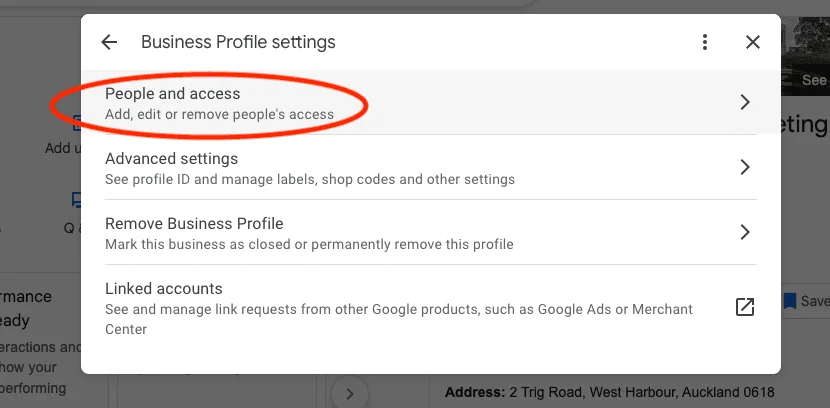
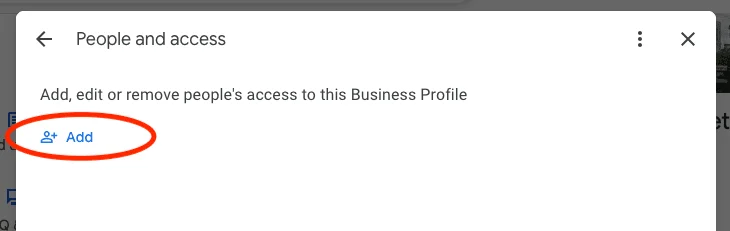
To add an admin to Google Business Profile, search for your business name on Google while signed in to the account that manages the profile, open the three-dot menu, choose Business Profile settings, then People and access. Click Add, enter the person's email address, choose Owner or Manager, and send the invitation. For agencies and staff, Manager is almost always the right role.
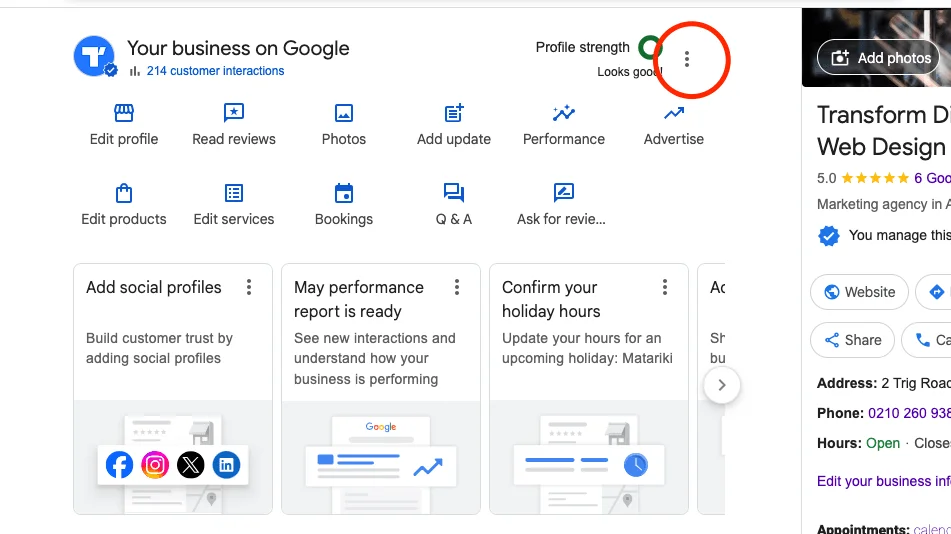
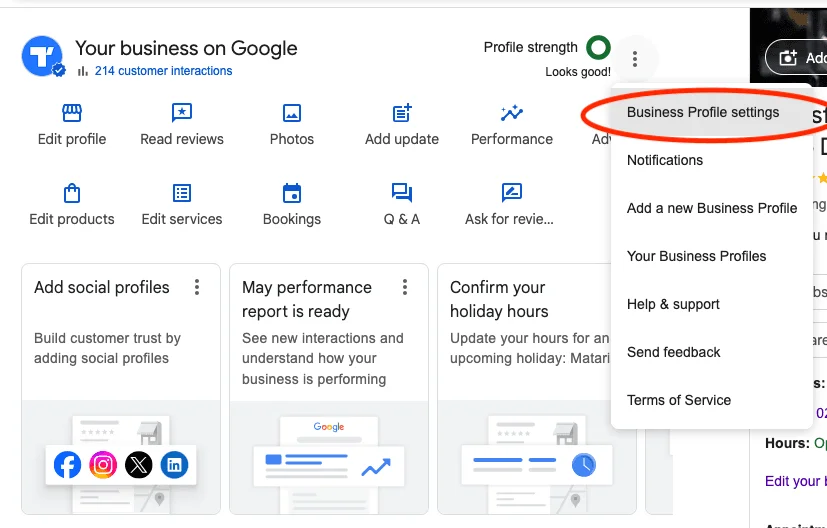
Short answer To add an admin to Google Business Profile, search for your business name on Google while signed in to the account that manages the profile, open the three-dot menu, choose Business Profile settings, then People and access. Click Add, enter the person's email address, choose Owner or Manager, and send the invitation. For agencies and staff, Manager is almost always the right role. Google Business Profile is the free listing that decides how your business appears in Google Search and Google Maps, and for most New Zealand businesses it drives a meaningful share of calls, direction requests, and website visits. Sooner or later you will need to give someone else access to it, whether that is a staff member who replies to reviews, a business partner, or an SEO agency handling your local visibility. The good news is that you never need to share your Google password to do this. Google Business Profile has a built-in access system that lets you invite people by email, give them a defined role, and remove them again at any time. This guide walks through the current steps, explains the difference between the Owner and Manager roles, and covers the safest way to give an agency access. How do you add an admin to Google Business Profile?Google retired the separate Google My Business dashboard, so profile management now happens directly in Google Search and Google Maps. That means the steps start from an ordinary Google search rather than a standalone app or website. Here is the current process from start to finish. It takes about two minutes, and the person you invite receives an email they must accept before they get access.
Invite people using the email address they actually check, and confirm with them that the invitation has been accepted, as pending invites expire if ignored. What is the difference between an Owner and a Manager?Google Business Profile currently has two roles: Owner and Manager. Owners have full control, including the ability to add and remove other users, transfer primary ownership, and remove or delete the profile itself. Every profile has exactly one primary owner, and that primary ownership can be transferred but never left empty. Managers can do almost everything day to day: edit business information, respond to reviews, add photos and posts, update opening hours, and see performance data. What they cannot do is remove the profile, manage who else has access, or take ownership away from you. For most situations, Manager is the right choice. It gives someone all the tools they need to run and improve the profile while you keep ultimate control. Reserve the Owner role for yourself and, at most, one trusted person inside your business, such as a co-director. 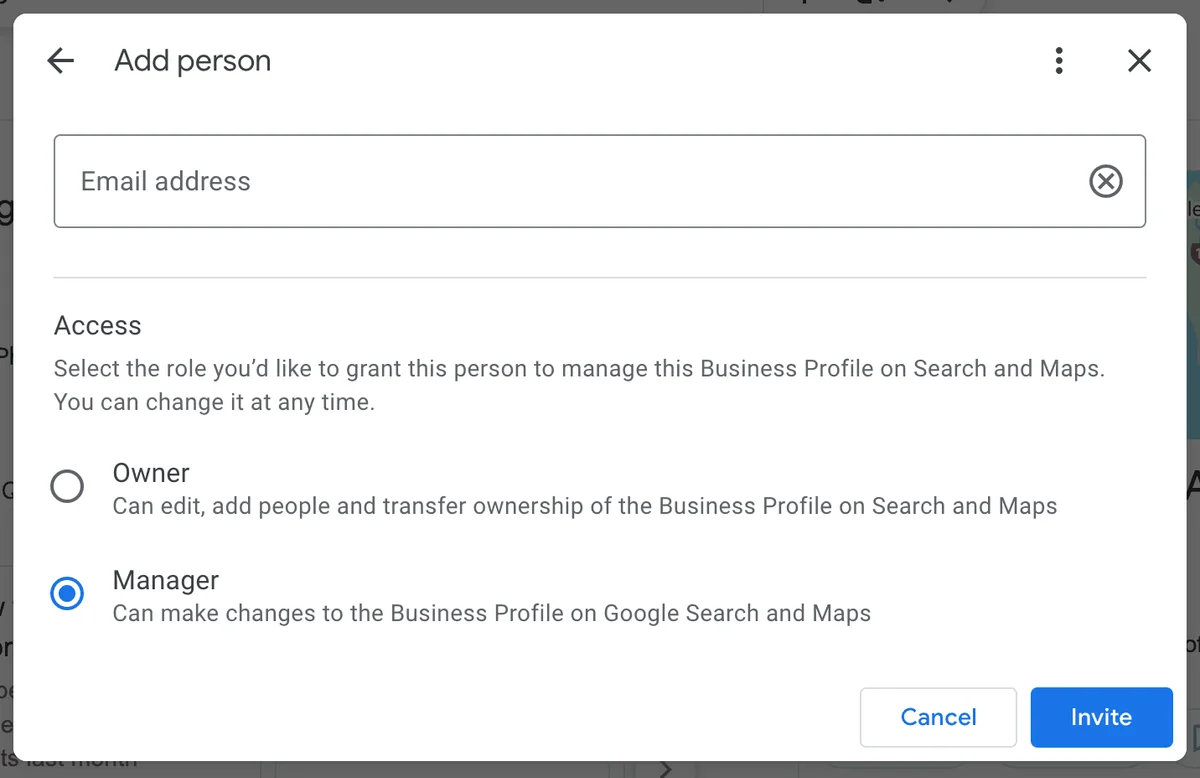 Why has the admin role name changed over the years?If you have managed this before, you may remember different labels. Under the old Google My Business system there were three roles: Owner, Manager, and Site Manager (earlier still called Communications Manager). When Google rebranded to Google Business Profile and moved management into Search and Maps, it simplified everything down to just Owner and Manager, and existing Site Managers were converted to Managers. This is why older tutorials and screenshots can look confusing. If a guide mentions a Google My Business dashboard, a Site Manager role, or a Users menu, it is describing the old system. The current model is simple: one primary owner, optional additional owners, and managers for everyone else. If instructions you are following do not match what you see on screen, check the date on the article; anything describing Google My Business rather than Google Business Profile is likely out of date. Should you add your SEO agency as an Owner or a Manager?Always add an agency as a Manager, never as an Owner. A reputable agency will only ever ask for Manager access, because that role covers everything they need: optimising your business description and categories, publishing posts and photos, responding to reviews, and monitoring performance. Owner access hands over control of the asset itself. If a relationship sours or an agency disappears, an owner-level account can lock you out or hold the profile hostage, and recovering ownership through Google's dispute process is slow and stressful. We see this situation regularly with Auckland businesses that gave a previous provider owner access years ago and lost track of it. The same logic applies to freelancers and marketing contractors. Your Google Business Profile is one of your most valuable digital assets in New Zealand local search, so ownership should always sit with someone inside the business. If an agency insists on Owner access or asks to create the profile under their own account, treat it as a red flag and keep ownership in your own Google account. How do you remove someone's access?Removing access uses the same People and access screen as adding it. Search for your business on Google while signed in, open the three-dot menu, choose Business Profile settings, then People and access. Click the person you want to remove and select Remove access. The change takes effect immediately and the person is notified by email. If the person you want to remove is the primary owner, you must transfer primary ownership to another owner first; Google will not let a profile exist without one. Only owners can remove other users, which is another reason to keep the Owner role in-house. It is good practice to review this list whenever staff leave or you change marketing providers. Old accounts with lingering access are one of the most common security gaps we find when auditing local profiles. What should you check after granting access?Once your new manager or agency has accepted the invitation, spend a few minutes confirming everything is set up sensibly. Open People and access and check that each person listed still needs access and holds the lowest role that does the job. Then agree on who does what. If both you and your agency reply to reviews, decide who responds first so customers do not get duplicate replies. If the agency updates your hours, categories, and photos, make sure they know about seasonal changes such as public holiday hours, which matter a lot for New Zealand retail and hospitality businesses. Finally, make sure the primary owner login itself is secure. Turn on two-step verification for that Google account and record which account it is somewhere safe, because that single login ultimately controls how your business appears on Google. Why does properly managed access matter for local SEO?A well-managed Google Business Profile is one of the strongest local SEO levers available to a small business. Profiles that are actively maintained, with fresh photos, answered reviews, accurate hours, and regular posts, tend to earn more visibility in the local results and the Google Maps pack than neglected ones. Giving the right people the right access is what makes that ongoing activity possible. When your team or agency can respond to a review the day it lands, or fix an incorrect phone number the moment it is spotted, your profile stays accurate and trustworthy in Google's eyes and, more importantly, in your customers' eyes. If you are not sure whether your profile is set up well, or who currently has access to it, that is a natural starting point for a broader local visibility review. Related servicesSources and further reading |

NEXT STEP
Want to know what your site should improve first?
Start with the three-step audit form. We will review your service pages, local SEO, technical setup, AI-search readiness, tracking, and enquiry path.
Start with an audit