

How to set up Google Cloud for Google Maps
To show Google Maps on your website, Google now requires a Google Cloud project with billing attached. This guide walks you through three short steps: create a project, connect your company's billing, and give Transform Digital access so we can finish the technical setup for you. It takes about ten minutes, and you stay in full control of your account and billing the whole time.
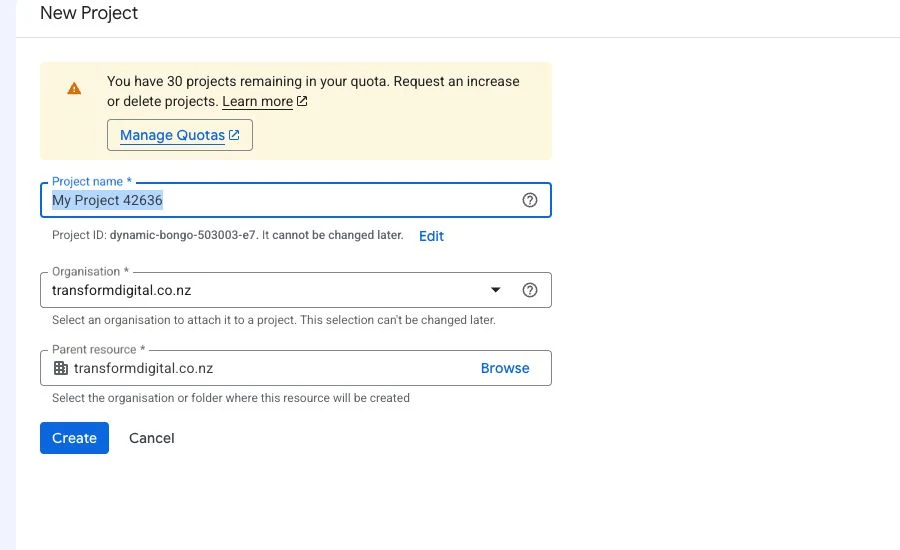
Short answer To show Google Maps on your website, Google now requires a Google Cloud project with billing attached. This guide walks you through three short steps: create a project, connect your company's billing, and give Transform Digital access so we can finish the technical setup for you. It takes about ten minutes, and you stay in full control of your account and billing the whole time. If you want a Google Map on your website — a store locator, a pin on your contact page, or address search in a form — Google now asks for a Google Cloud account with billing attached before it will show that map. This is a Google requirement for everyone, not something specific to your website, and it protects the map from being misused by other sites. The good news: you only have to do the setup once, it takes about ten minutes, and you do not need to be technical. This guide explains each step in plain language and shows you exactly what each screen looks like. Once it is done, Transform Digital handles all the technical parts for you. Before you start: what you will needYou will need a Google account that belongs to your business (not a personal Gmail if you can avoid it), and your company's billing details — the same card or bank details you would use for any business subscription. A quick word on cost, because billing can sound alarming: for a normal small-business website, Google Maps usage almost always falls within Google's free monthly allowance, so most clients are never charged. Google simply requires a billing account to be on file. You set it up directly with Google and remain in complete control of it — you can see every charge, set budget alerts, and cancel any time. You will never send card details, passwords, or codes to Transform Digital. Everything to do with money is entered directly into Google, and your billing stays yours. Step 1: Create a projectA "project" is just a labelled container inside Google Cloud that keeps your map settings tidy and separate from everything else. You are creating one and giving it a name.
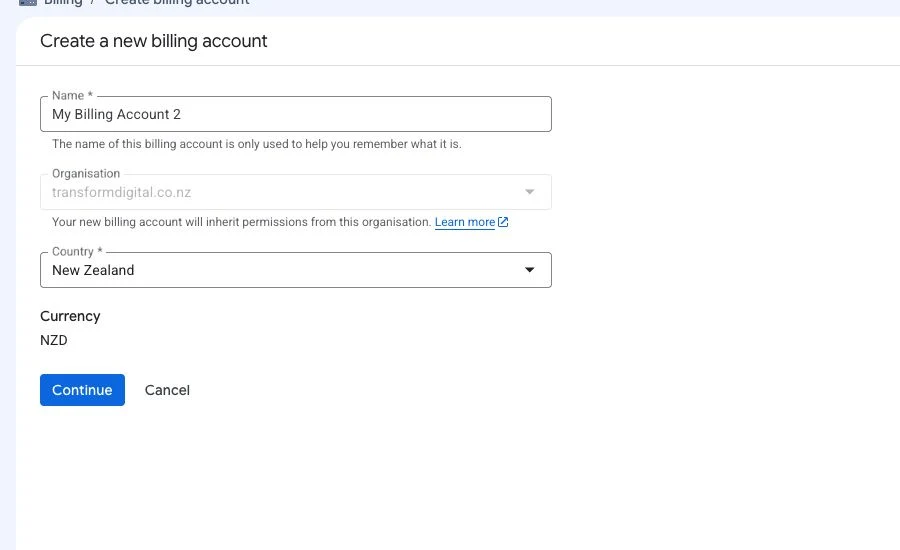
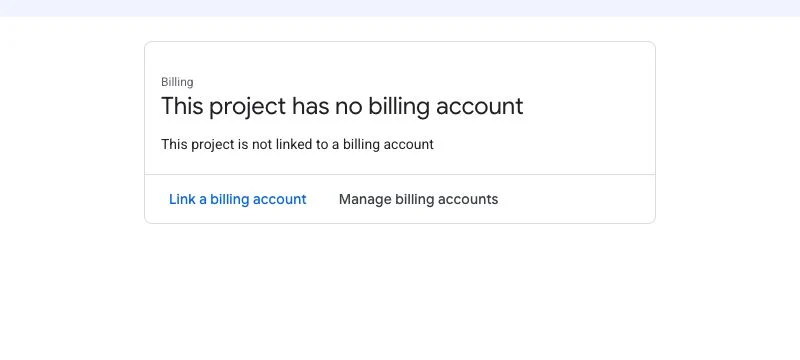
Step 2: Connect your billingNow you attach a billing account to the project. If your business already uses Google Cloud or Google Workspace, you may already have a billing account you can reuse. If not, you will create one — this is where you enter your company details directly with Google.
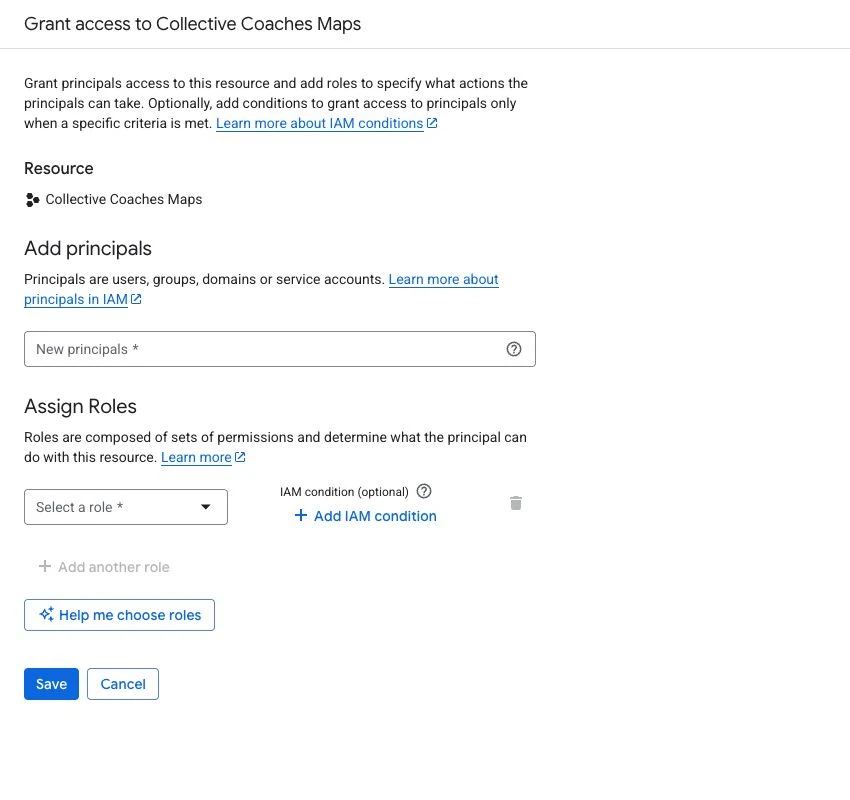
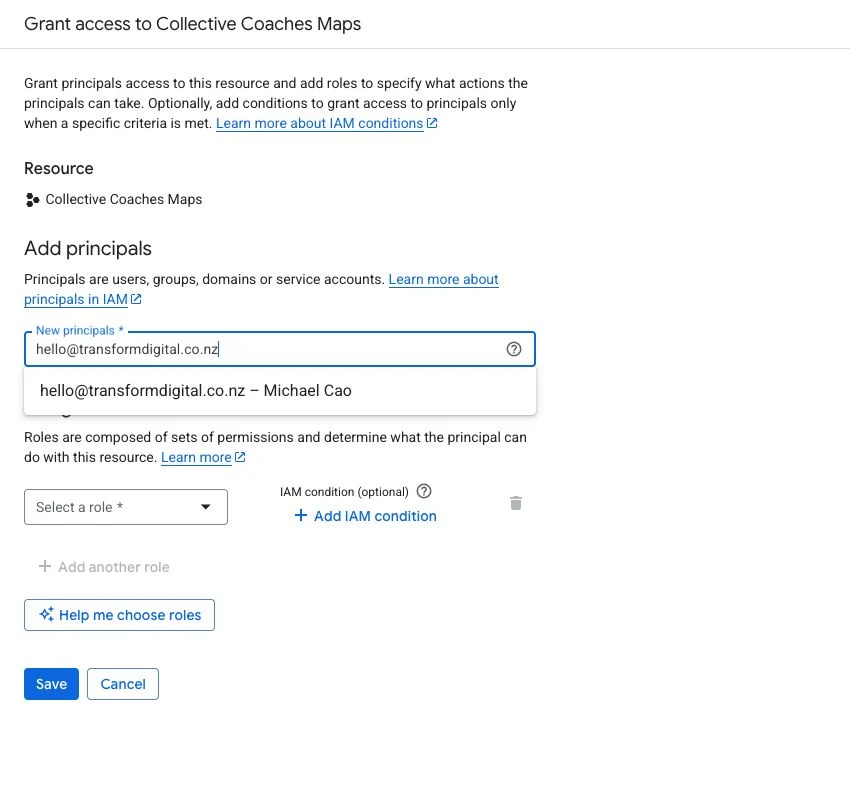
Set a budget alert while you are here (Billing → Budgets & alerts) if you would like an email the moment any usage approaches a limit you choose. It is optional, but nice peace of mind. Step 3: Give Transform Digital accessThe final step lets our team do the technical setup — turning on the right Google Maps features, creating a secure key locked to your website, and testing it — without ever needing your password. You are adding our email address as a helper on this one project only.
Editor access is enough for the setup and does not give us your billing or ownership. Please do not grant Owner, Billing Account Administrator, or access to your payments profile unless we have agreed it separately. Step 4: Send us a few detailsOnce the three steps are done, email us so we can start. Please send: Never email passwords, card details, verification codes, credential files, or API keys — we never need them. If Google shows an error, a screenshot with any card details cropped out is the most helpful thing to send.
What happens nextFrom your details, Transform Digital enables the required Maps and Places features, creates a secure API key that only works on your website, applies sensible usage limits so nothing can run away with your budget, adds the map to your site, and tests everything before switching off any old key. You will not need to touch Google Cloud again unless your details change. If anything on your side looks unclear at any point, send us a screenshot and we will guide you through it. Related servicesSources and further reading |

NEXT STEP
Want to know what your site should improve first?
Start with the three-step audit form. We will review your service pages, local SEO, technical setup, AI-search readiness, tracking, and enquiry path.
Start with an audit